Connecting GitLab to Your Application
This page covers gitlab.com. For a self-managed instance you register an OAuth application on your own GitLab and enter its URL, client id and secret in Plexicus — see Self-Hosted.
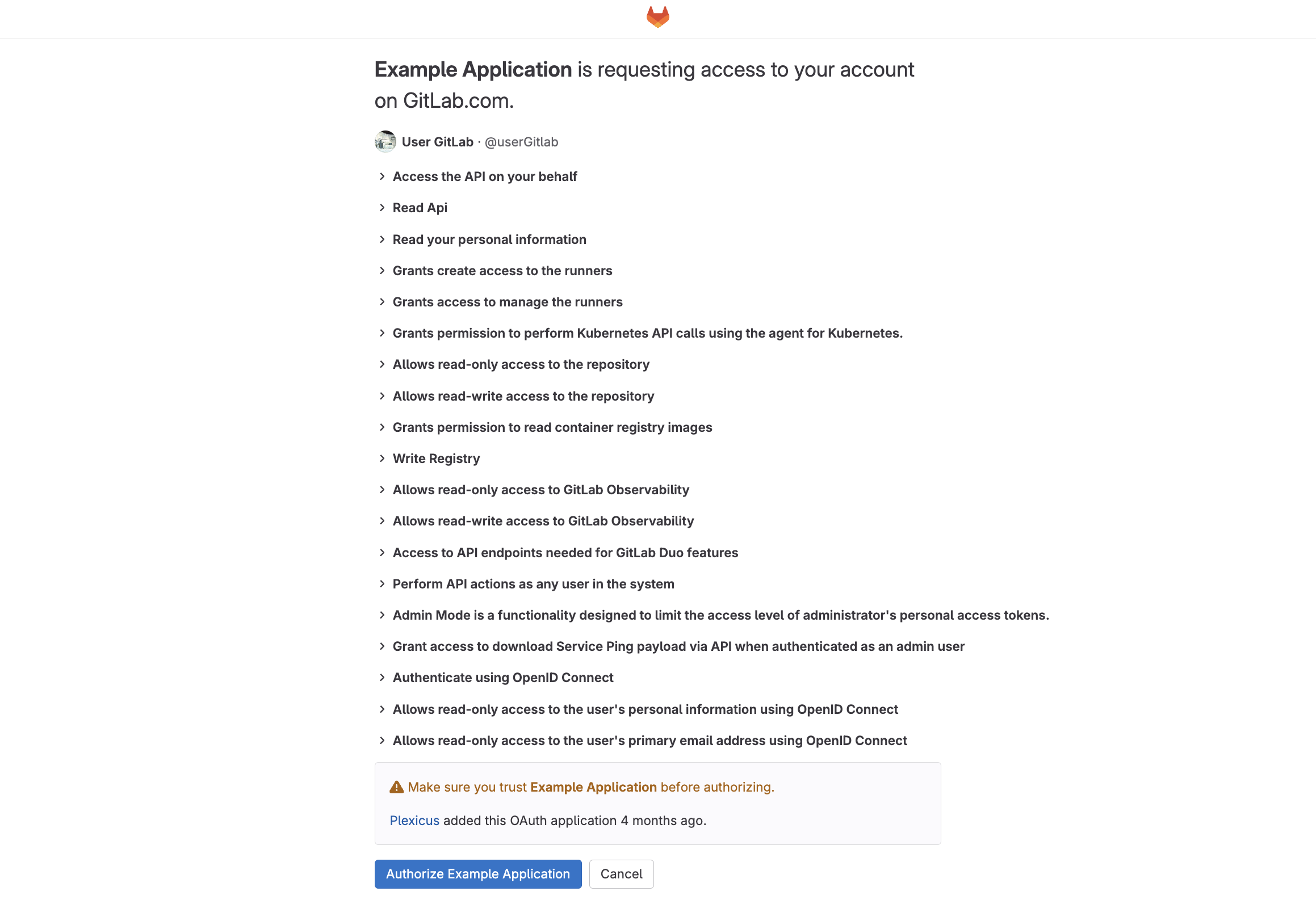
Either way Plexicus requests the same eight scopes: api, read_api,
read_user, read_repository, write_repository, openid, profile,
email. Granting fewer lets the authorization succeed and the later repository
calls fail.
Before your users can click Connect for gitlab.com, the deployment needs a
GitLab application of your own, registered with the callback URL
https://<your-plexicus-domain>/api/callback/gitlab. See the
SCM Connection Reference → GitLab.
Follow these steps to connect your GitLab account:
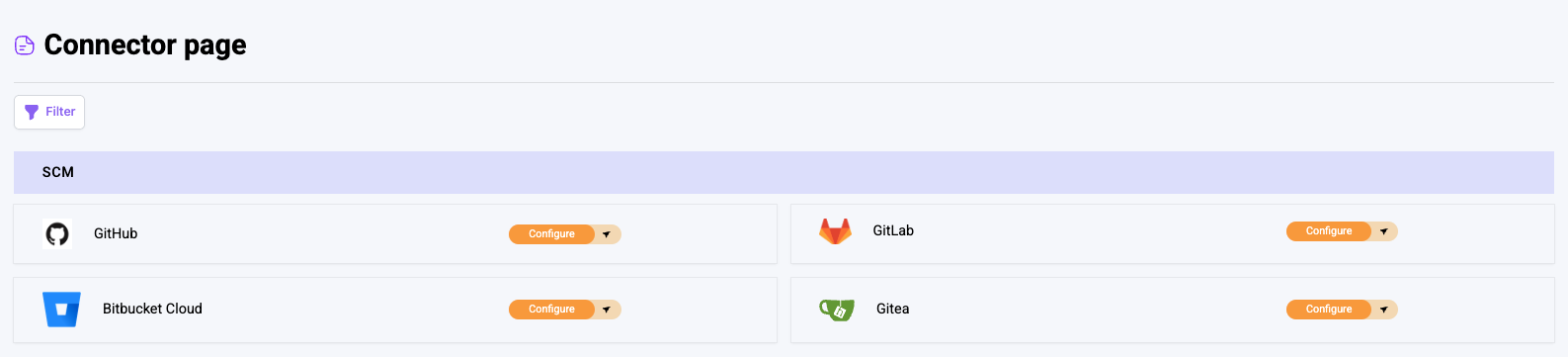
1. Access the Connector Page
- Log in to your account
- Navigate to the Connector page
- Find the SCM Panel
- Click on the GitLab section
2. Initiate the Connection
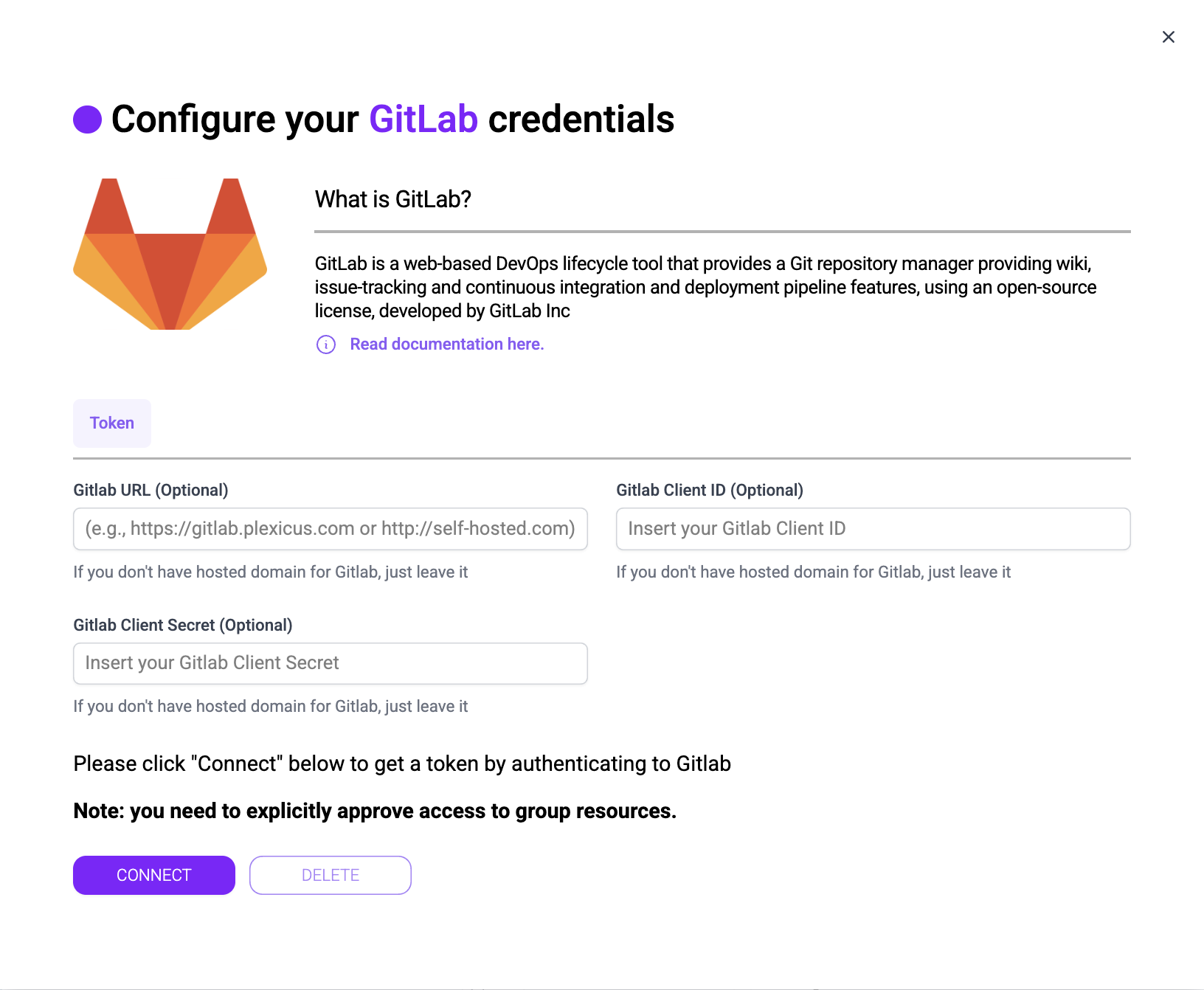
- It will show tab
Token - Click the
Connectbutton
3. Authorize GitLab Access
- Wait for the authorization process to complete
- Grant necessary permissions for Plexicus to access your GitLab account
4. Finalize the Connection
- You'll be redirected back to Plexicus
- Verify that the connector is successfully configured
Next Steps
You can now create an application using GitLab as your Source Control Management (SCM) system.
